Unlocking the Medusa ETU: How to Program the Poseidon CSI Theseus AEG with the Medusa App
- Posted on
- By AEX News
A clear, step-by-step guide to connecting and programming the Medusa ETU on the Poseidon CSI Theseus AEG using the Medusa App. Covers modes, binary trigger, tracer control, burst and sensitivity settings, battery selection, telemetry, safety tips, and troubleshooting.
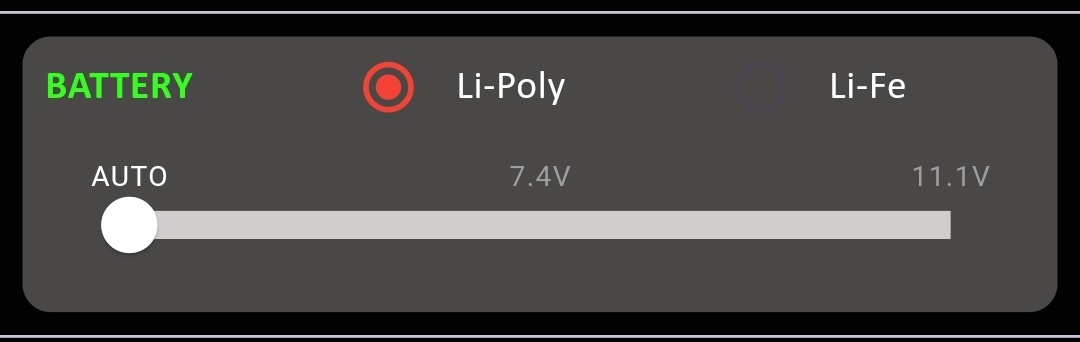
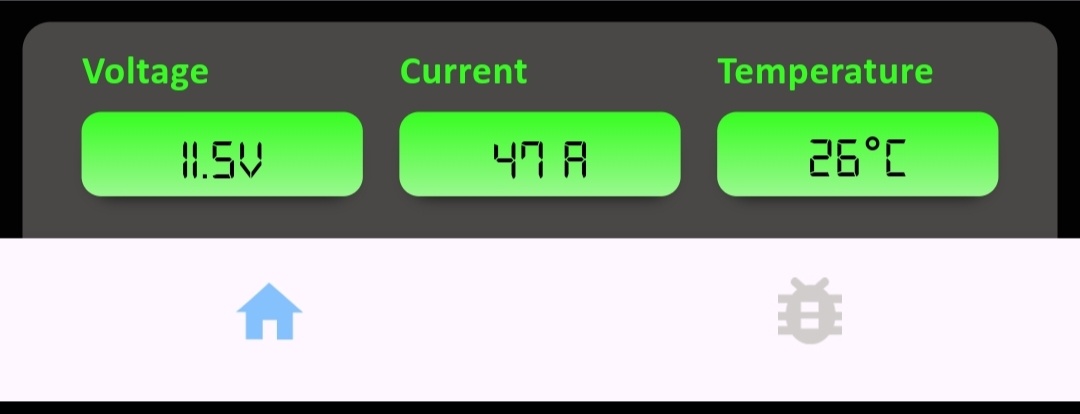
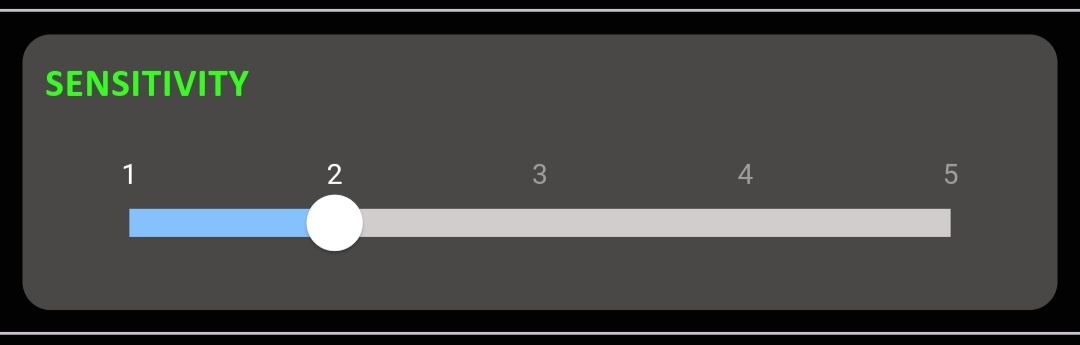
The Poseidon CSI Theseus comes pre-installed with the Medusa ETU. In this guide we’ll walk you step-by-step through connecting the Medusa App, understanding each control, and customizing the ETU to match your play style. The Medusa ETU is a fully Bluetooth-enabled electronic trigger unit (ETU) that lets you control firing modes, sensitivity, burst settings, tracer control, binary trigger and battery type directly from your smartphone using the Medusa App. It’s factory-installed in the Poseidon CSI Theseus AEG and gives you precise, on-the-fly configuration without tools. The top status window displays your current selector state and highlights the selected mode: When you move the physical selector, the app highlights the corresponding word so the app and gun stay in sync. Track how many rounds you’ve fired during a session and monitor battery voltage so you don’t get stranded in the middle of a game. A graphical selector mirrors the physical switch movement for visual confirmation of your selected mode. Activates binary trigger functionality. To enable: Toggle the built-in tracer unit on or off via the app. Use the light icon to switch between tracer enabled/disabled. The fire button in the app lets you perform a test fire electronically without pulling the physical trigger. Use this for quick checks — always follow safety steps first. To set burst length: The sensitivity panel gives you five settings (1–5): 1 = most sensitive, 5 = least sensitive. Access this while the selector is on Semi and choose the setting that best matches your trigger feel. Set the correct battery chemistry and voltage so the ETU reads and displays accurate voltage and current. Options typically include:Unlocking the Medusa ETU: How to Program the Poseidon CSI Theseus AEG with the Medusa App
Quick overview: what is the Medusa ETU?
Before you begin — safety & prep
Step-by-step: connect the Medusa App
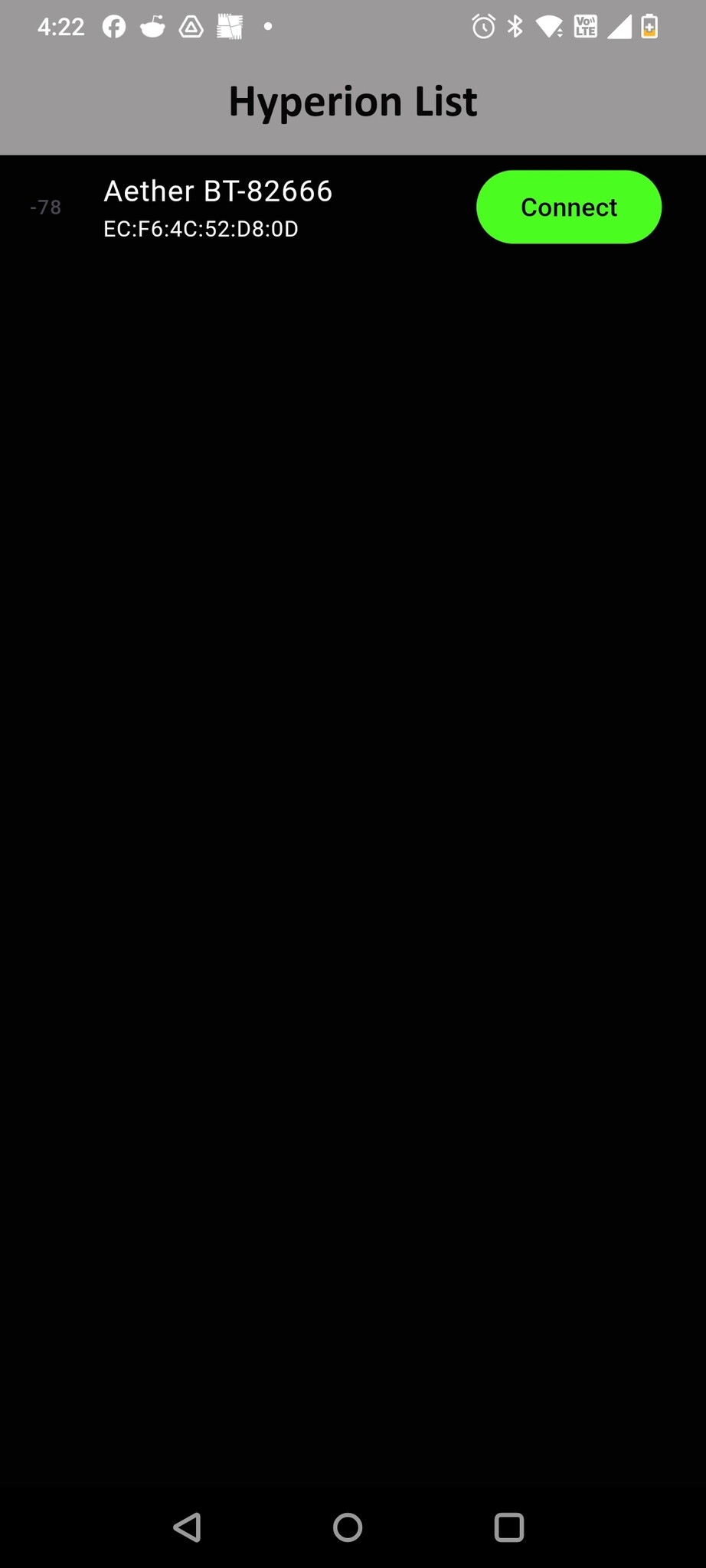
Understanding the main dashboard
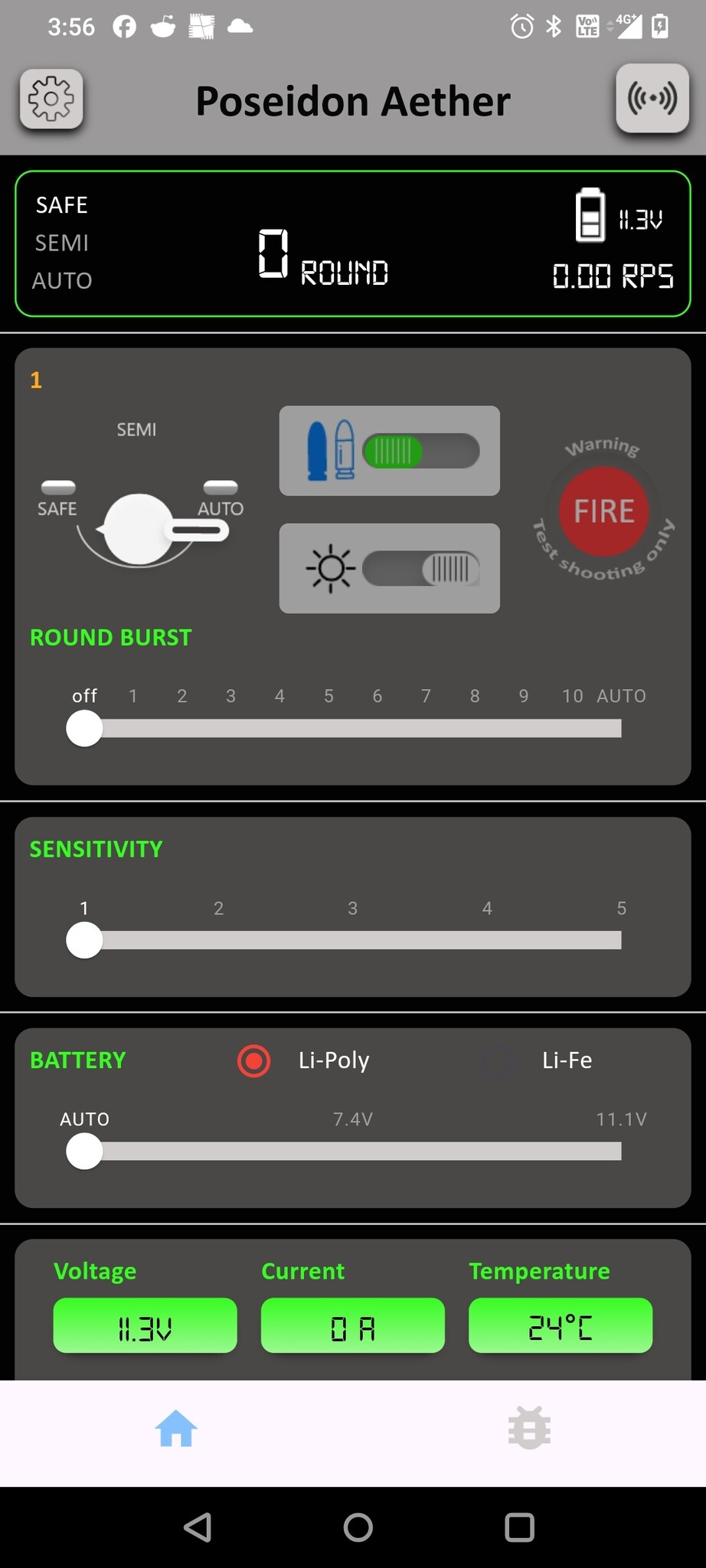
Key app features explained
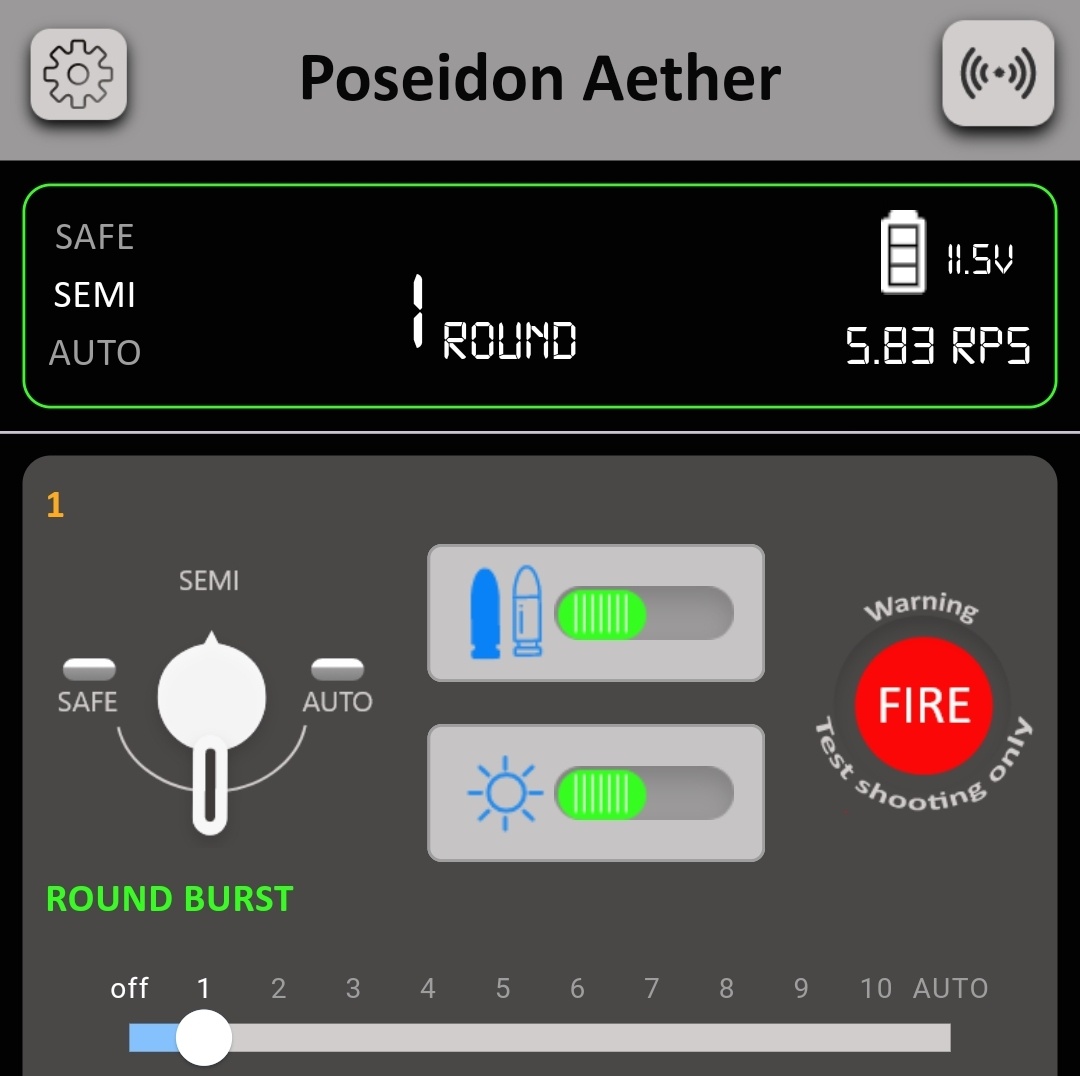
Round count & voltage
Selector switch visual
Binary mode (dual-bullet icon)
Tracer unit control (light icon)
Fire button (app test fire)
Burst mode
Sensitivity settings
Battery type selection